
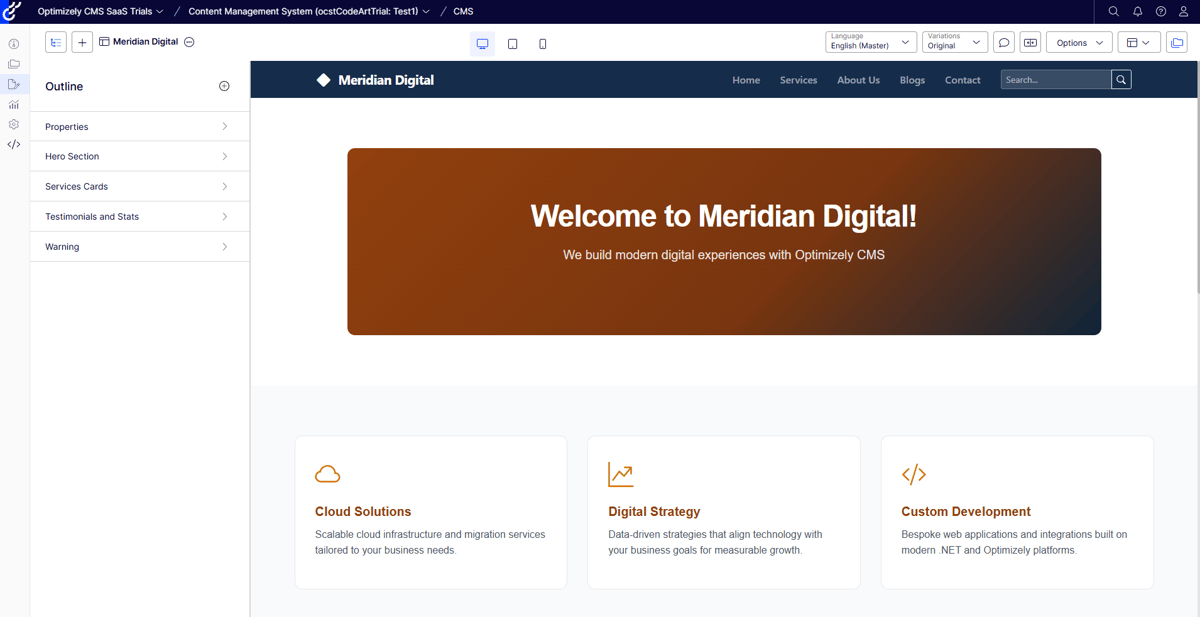
Headless has a tendency to promise freedom and deliver alignment meetings. Two codebases. Two sets of models. Two teams trying very hard not to drift apart. With Optimizely SaaS CMS, headless is mandatory. So instead of fighting it, I decided to flip it. What happens if we build the head first — properly, in .NET — and let the CMS adapt to that reality? That experiment became CodeArt.Optimizely.HeadlessKit - now available as open source.
From Code-First CMS to Headless Friction
For many years, one of the biggest advantages of Optimizely CMS has been its code-first model definition.
You defined your content types in code.
You worked with strongly typed models.
Your renderings knew exactly what properties existed.
And very rarely did you end up depending on a field that wasn’t there.
It was predictable. Stable. Developer-friendly.
Then headless entered the room.
Whether through Optimizely SaaS CMS or Graph/REST APIs in CMS 11/12/13, the model changes fundamentally. Suddenly:
- Content models live in one system
- Frontend models live in another
- Synchronization becomes your responsibility
- Queries need to be written manually
- Routing, navigation, rendering logic — all yours to rebuild
In other words: more flexibility, but also more moving parts.
I’ve seen customers solve this in many ways. Some manually maintain both sides. Some generate frontend models from Graph schemas. I’ve even helped automate parts of that process.
It helps — but you still end up with:
- Two codebases that must be deployed in sync
- Or a fragile mix of admin configuration and frontend logic
- Or a steady stream of “why doesn’t this property exist?” moments
And that’s where I started thinking differently.
What Would an Ideal Head Look Like?
Instead of asking, “How do we adapt our frontend to the CMS?”
I asked:
What would the ideal head site look like to me?
I wanted:
- Code-first
- Strongly typed
- Minimal synchronization work
- Easy to work with (especially with AI-assisted development)
- As close as possible to the classic Optimizely CMS development experience
Being a .NET developer, I naturally started with a plain ASP.NET MVC / Razor Pages site in .NET 10.
What if I:
- Defined my content types as normal model classes
- Marked editable properties with attributes
- Added a single NuGet package
- Let it synchronize everything with the SaaS CMS on startup
Content types.
Properties.
Display templates for Visual Builder.
And what if it also handled routing, basic rendering logic, and Content Graph querying?
Turns out — it wasn’t that complicated.
So here is v1 of HeadlessKit.
A lightweight, code-first bridge between your .NET 10 site and Optimizely SaaS CMS.
👉 GitHub:
https://github.com/CodeArtDK/CodeArt.Optimizely.HeadlessKit
The NuGet package is available in the Optimizely nuget feed.
Getting Started with HeadlessKit
Here’s how you go from a blank .NET 10 project to a fully synced Optimizely SaaS CMS with content types and rendering ready to go — without manually defining anything in the CMS.
Note: This is based on the official docs — so what works here is exactly what works in the repo.
Getting Started in 5 Minutes
HeadlessKit is intentionally simple. If you’ve built a Razor Pages or MVC site before, you’re already 90% there.
Install the Package
Add Your SaaS CMS and Graph Settings
Configure your credentials in appsettings.json (or user secrets).
HeadlessKit needs:
- SaaS CMS API credentials
- Optimizely Graph key
That’s it.
Register the Services
In program.cs, startup or whereever you register your DI:
This enables:
- Content type synchronization
- Graph integration
- Dynamic routing
- Preview support
Setup routing
app.MapDynamicPageRoute<ContentRouteTransformer>("{**path}");
Define Your Content Types in Code
On startup, HeadlessKit will:
- Create or update the content type
- Sync properties
- Configure display templates for Visual Builder
No manual CMS setup required.
Create a Template and Run
Add a Razor Page or MVC template for your content type, inherit from the included generic base.
    [TemplateDescriptor(typeof(LandingPage))]
    public class LandingPageModel : ContentPage<LandingPage> { }
Run the site.
That’s it.
Your models are now:
- Strongly typed
- Synchronized with SaaS CMS
- Querying via Content Graph
- Rendered through your .NET site
Display Templates
If you are using visual builder and defining experiences, elements and the like - you can of course also define your display templates in your code the same way.
    [DisplayTemplate(Key = "ExperienceDefault", DisplayName = "Experience",
        BaseType = BaseTypes.Experience, IsDefault = true)]
    public class ExperienceDisplayTemplate : SaaSDisplayTemplate
    {
        [JsonIgnore]
        [DisplayTemplateSetting(DisplayName = "Color Scheme", SortOrder = 10)]
        [DisplayTemplateChoice("default", "Default", SortOrder = 1)]
        [DisplayTemplateChoice("dark", "Dark", SortOrder = 2)]
        [DisplayTemplateChoice("warm", "Warm", SortOrder = 3)]
        [DisplayTemplateChoice("cool", "Cool", SortOrder = 4)]
        public string ColorScheme { get; set; } = "default";

        [JsonIgnore]
        [DisplayTemplateSetting(DisplayName = "Typography", SortOrder = 20)]
        [DisplayTemplateChoice("default", "Default", SortOrder = 1)]
        [DisplayTemplateChoice("serif", "Serif", SortOrder = 2)]
        [DisplayTemplateChoice("modern", "Modern", SortOrder = 3)]
        [DisplayTemplateChoice("monospace", "Monospace", SortOrder = 4)]
        public string Typography { get; set; } = "default";

        [JsonIgnore]
        [DisplayTemplateSetting(DisplayName = "Content Width", SortOrder = 30)]
        [DisplayTemplateChoice("default", "Default", SortOrder = 1)]
        [DisplayTemplateChoice("narrow", "Narrow", SortOrder = 2)]
        [DisplayTemplateChoice("wide", "Wide", SortOrder = 3)]
        [DisplayTemplateChoice("full", "Full Width", SortOrder = 4)]
        public string ContentWidth { get; set; } = "default";

        [JsonIgnore]
        [DisplayTemplateSetting(DisplayName = "Accent Color", SortOrder = 40)]
        [DisplayTemplateChoice("teal", "Teal", SortOrder = 1)]
        [DisplayTemplateChoice("blue", "Blue", SortOrder = 2)]
        [DisplayTemplateChoice("purple", "Purple", SortOrder = 3)]
        [DisplayTemplateChoice("orange", "Orange", SortOrder = 4)]
        public string AccentColor { get; set; } = "teal";
    }
Content Querying
But of course you will also want to be able to query your content, do navigation and so on. And this is also supported out-of-the-box in the library. And in a way you might recognize.
public class MyService
{
    private readonly IContentRepository _repository;

    public MyService(IContentRepository repository)
    {
        _repository = repository;
    }

    public async Task Example()
    {
        // Get content by URL path
        var page = await _repository.GetContentByPath<StandardPage>("/en/about");

        // Get content by key
        var content = await _repository.GetContent<ArticlePage>("abc-123-def");

        // Get child content
        var children = await _repository.GetChildren<ArticlePage>("parent-key-123");
    }
}
Or you can even do more LINQ style querying if you want to do stuff like searching or more advanced navigation.
// Basic query
var articles = await GraphQuery.For<ArticlePage>(client)
    .Where(f => f.Metadata.Status.Eq("Published"))
    .OrderBy(a => a.MetaData.Published, OrderDirection.DESC)
    .Take(10)
    .ToListAsync();
And much more
Of course there is also support for SaaS preview mode, and a bunch of taghelpers to render all the Optimizely specific elements like content area, experience composition and content areas.
You can check out how it all fits together in the included sample sites. For now there are both Razor Pages and MVC sample site - and a Blazor self-service site is in progress. The sample site included is yet another fictional company - and it was made in a few prompts by AI.
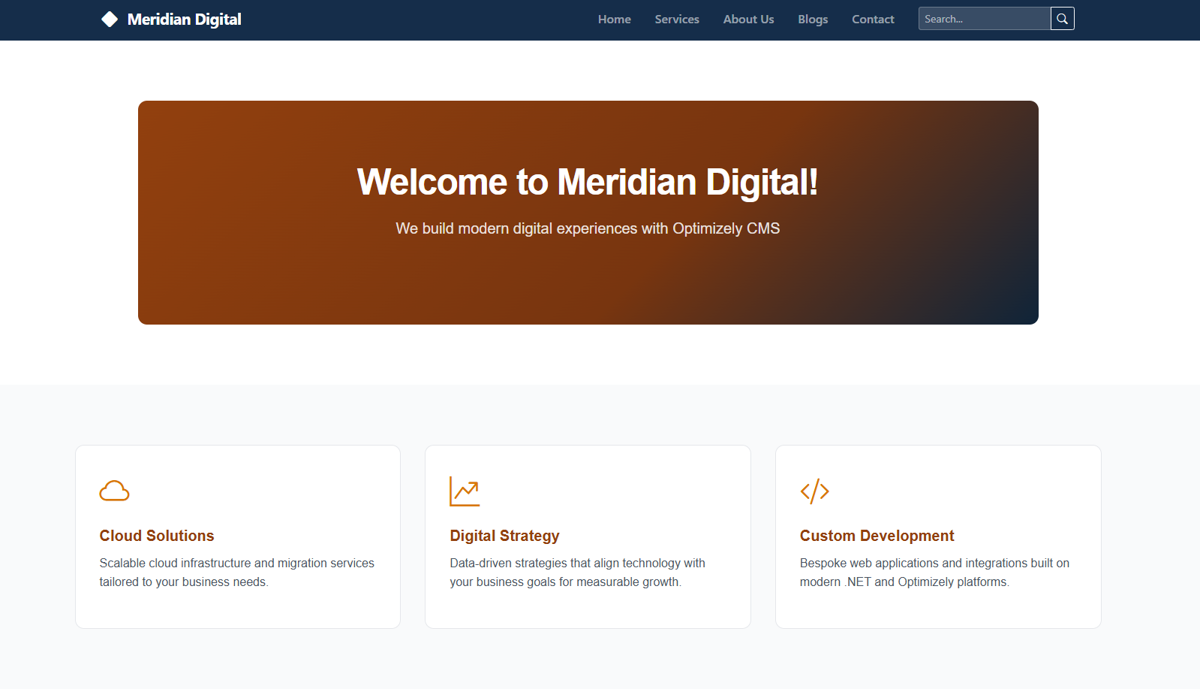
AI
Naturally I assume you will also use agents to build sites on this - and to ease that process I also included AI documentation so that your agents can quickly learn how to work with HeadlessKit - and also how to query Optimizely SaaS directly.
When I asked my agents to build the sample site, I simply also asked it to use the client keys and secrets and its knowledge of the SaaS Content management API to create content as well directly in the CMS and it did so beautifully.
Demo site
If you want to try running the demo site yourself, you can pull the repo, fill in the appsettings or user secrets and run it against an Optimizely SaaS CMS (if you are lucky you might get your hand on a free trial like I have).
I also included an export-package with the content so it should be easy to get running.